


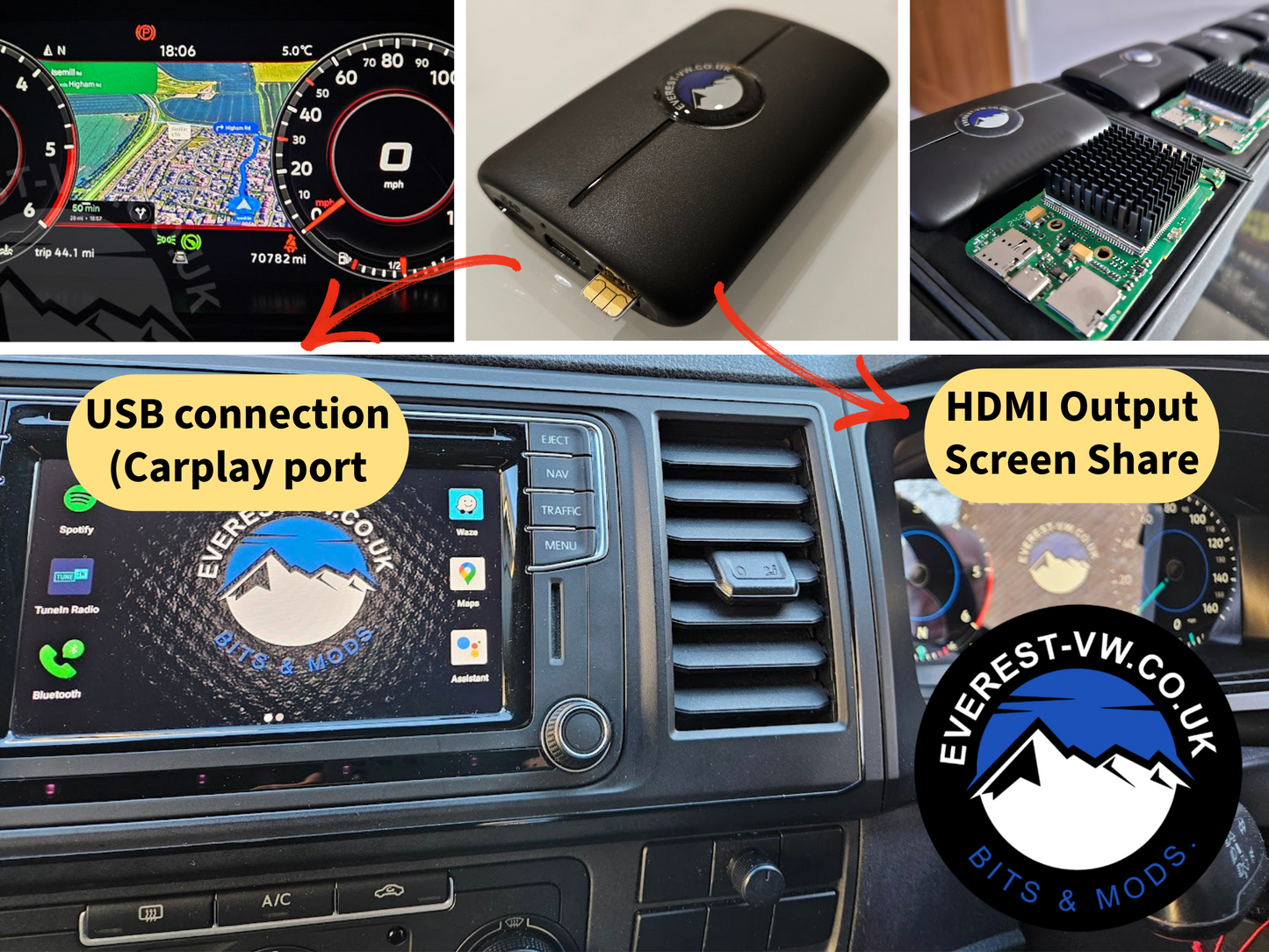
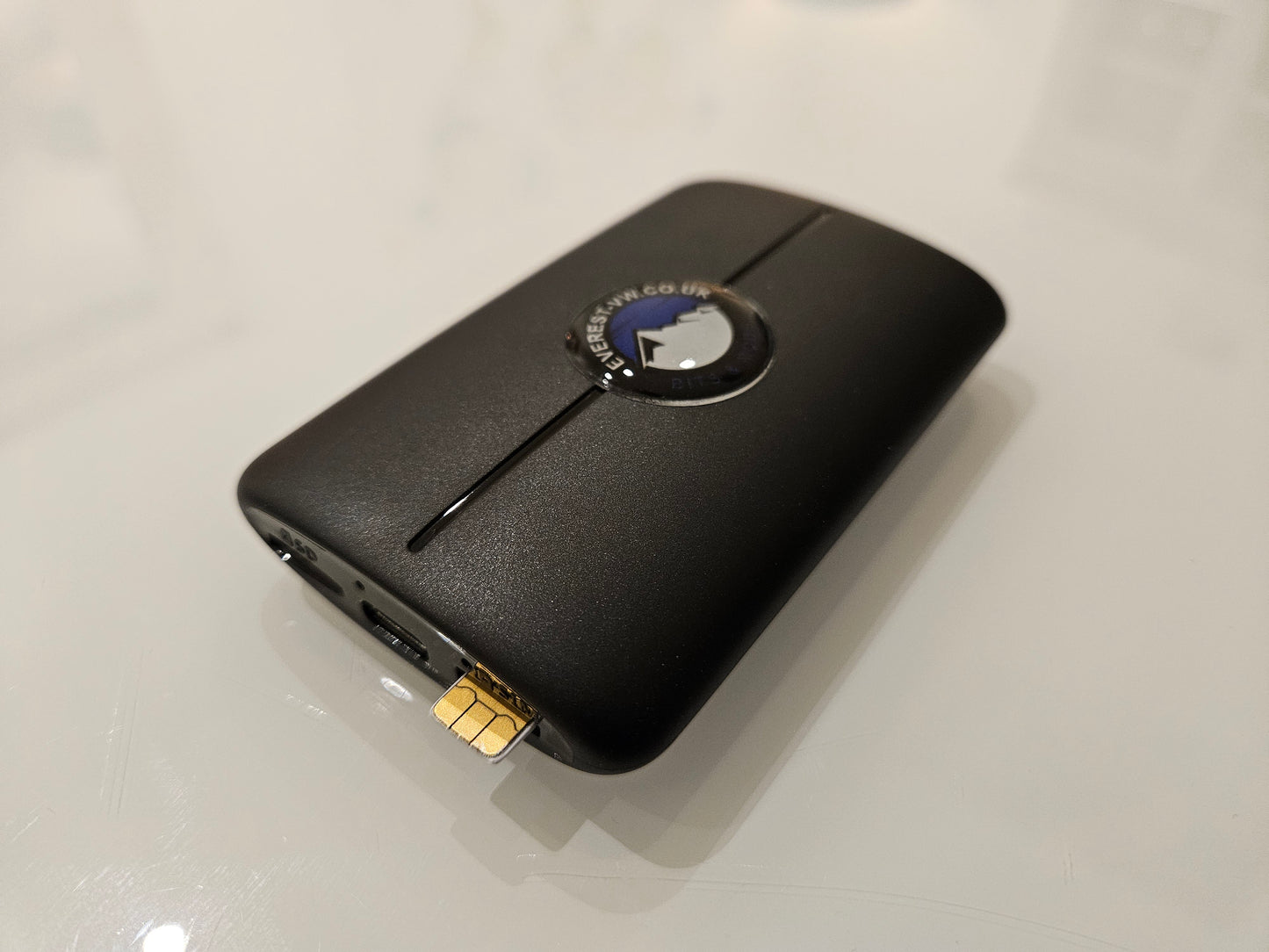
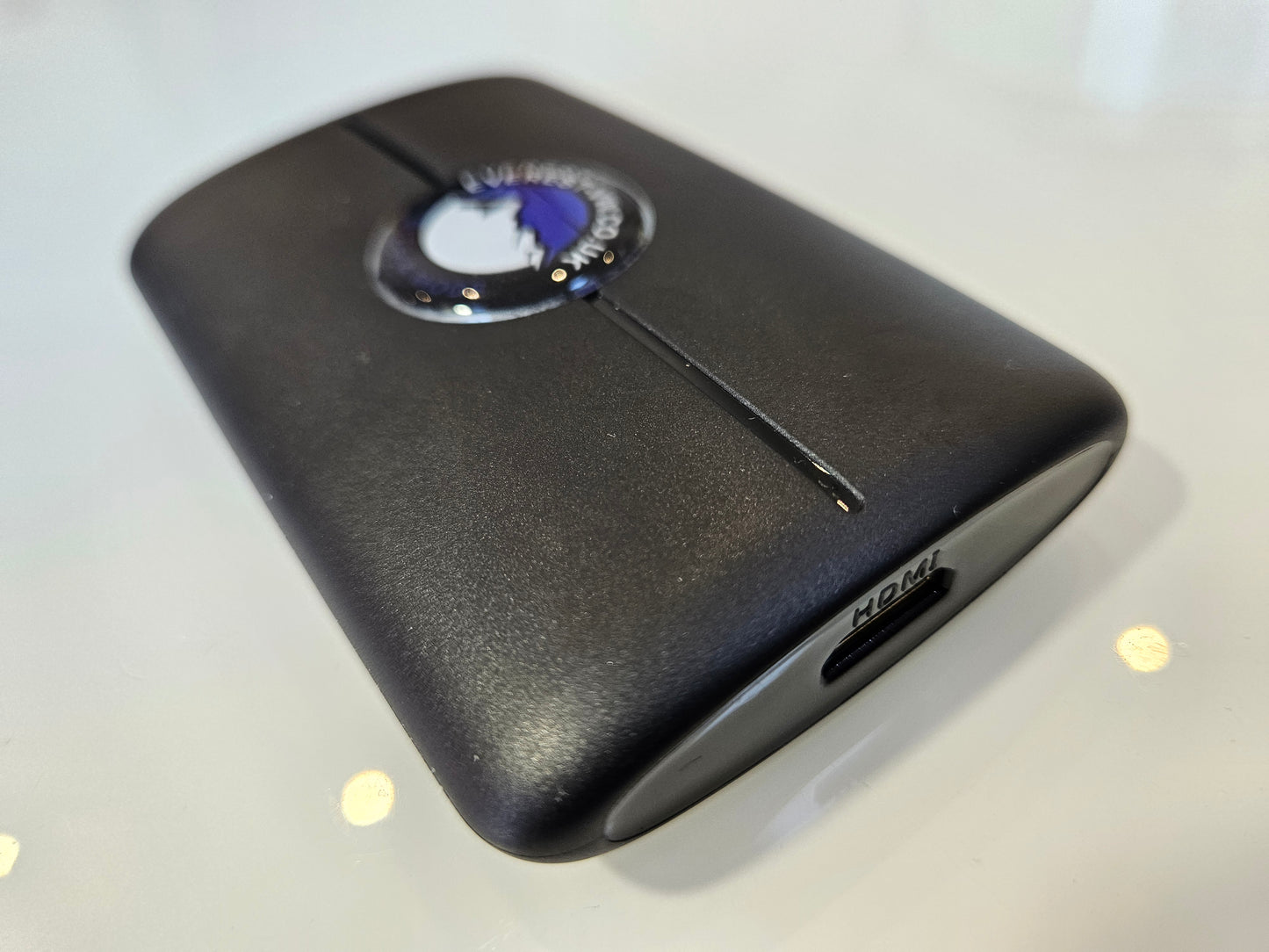
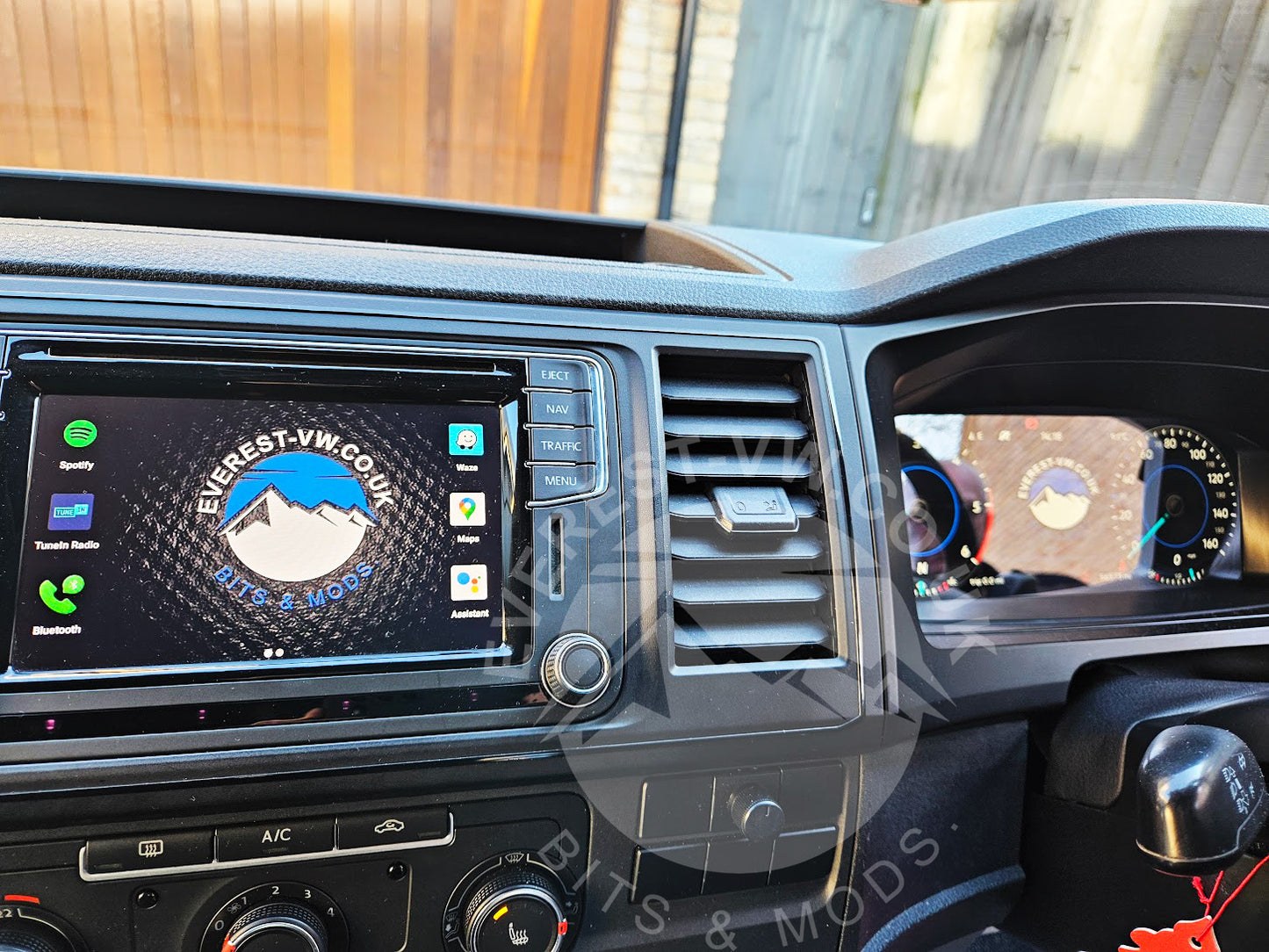
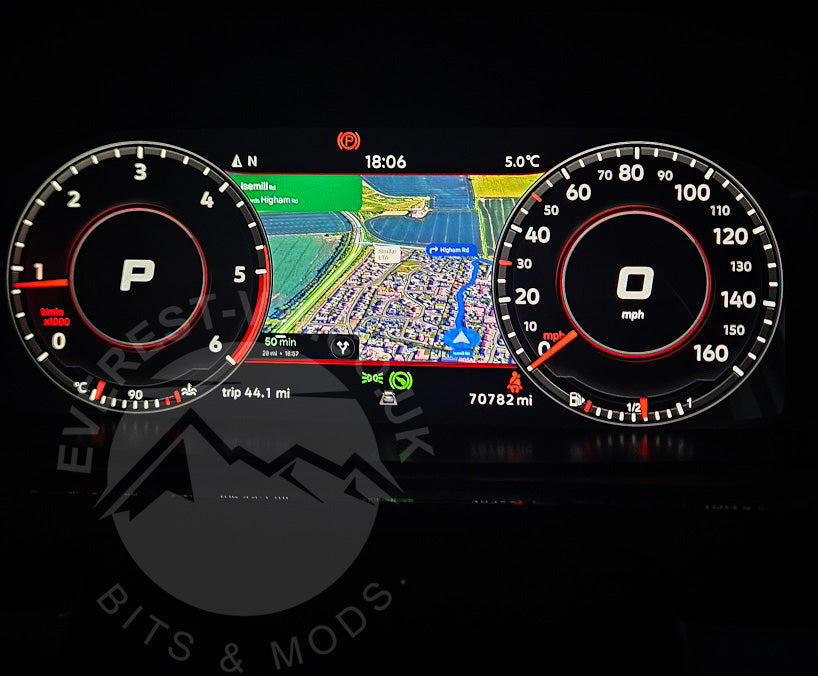
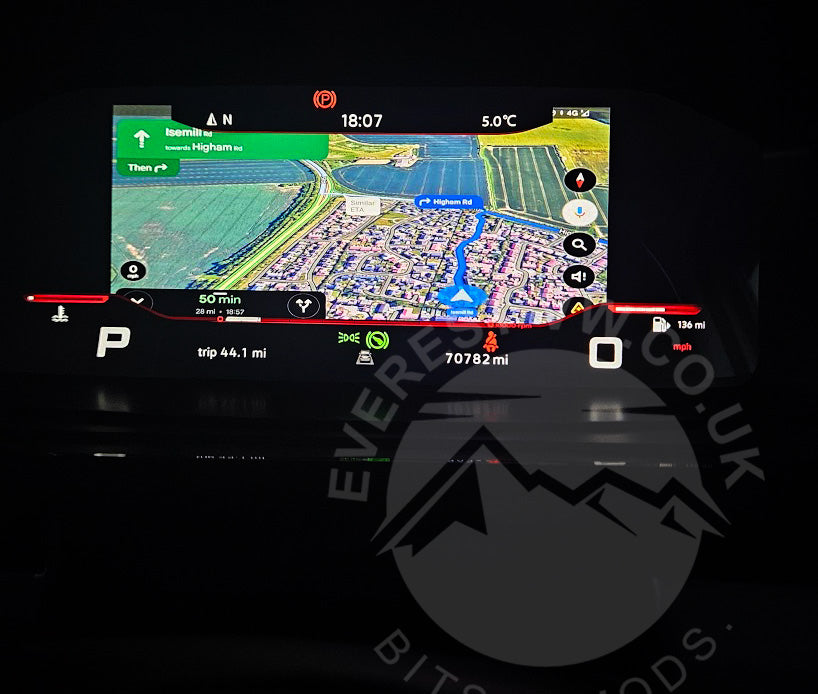
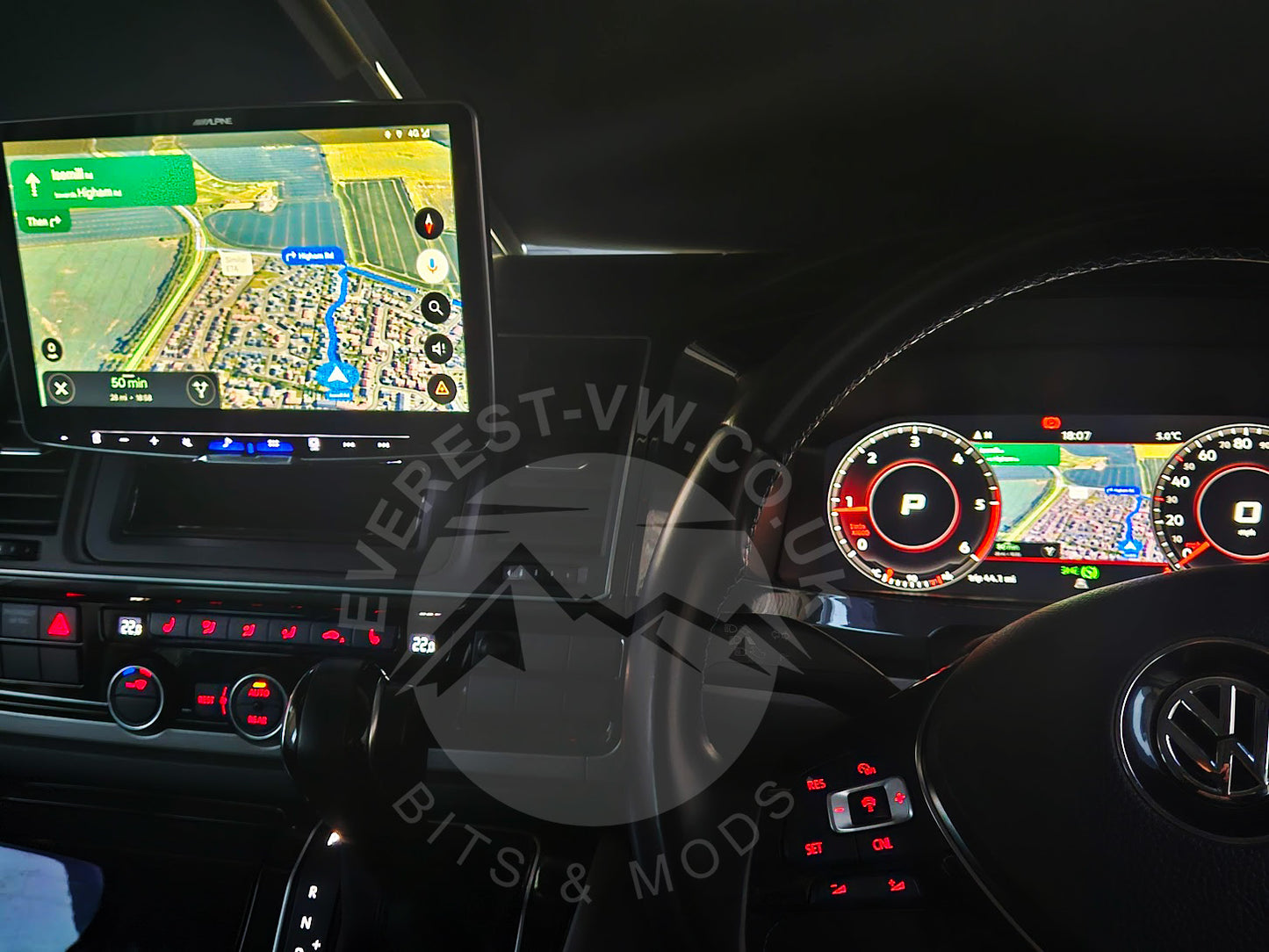
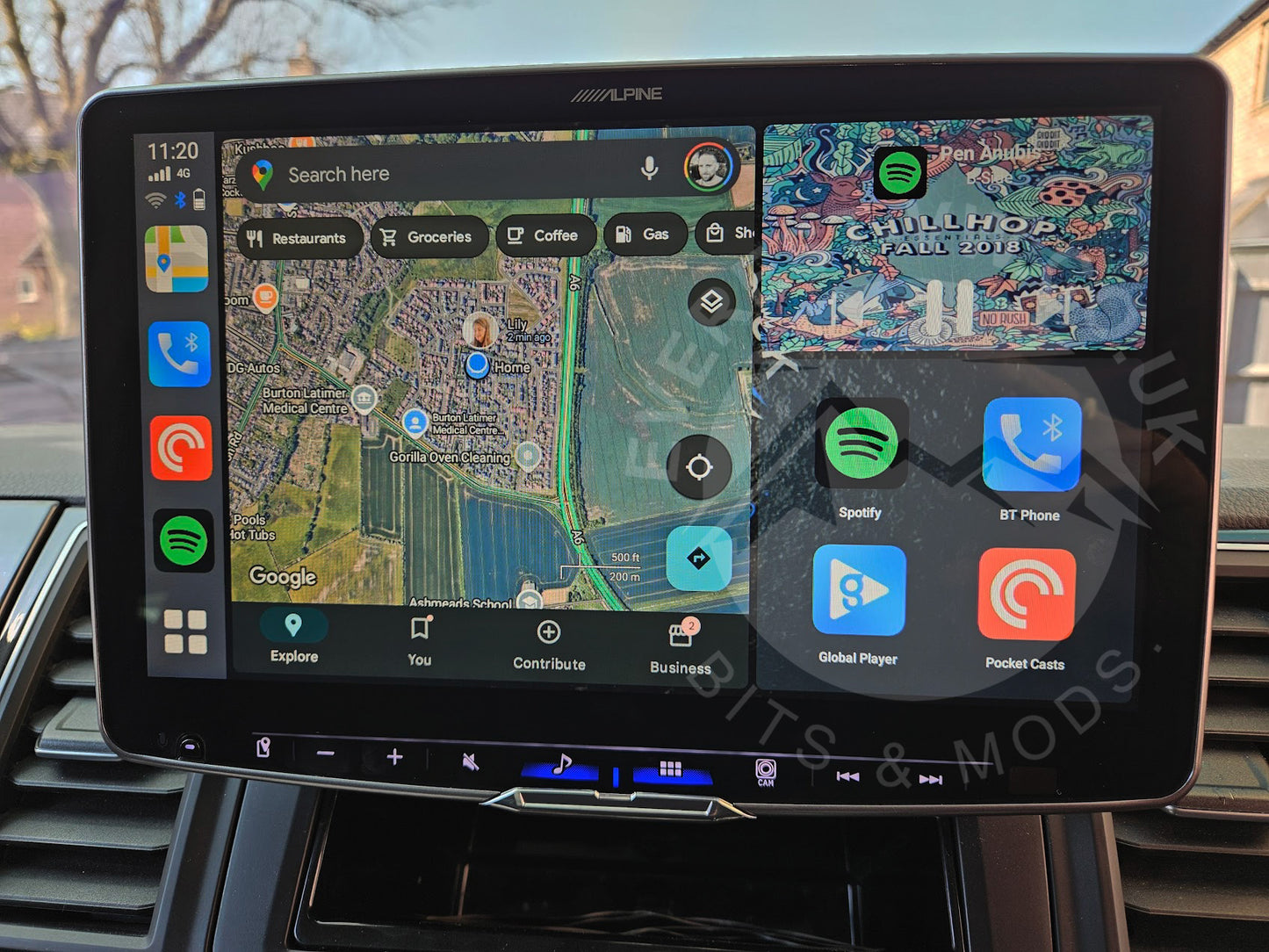

EVW-ANDROID Ai BOX - Head Unit mirror to Digidash

Product features
What’s included
Installation support
Frequently asked questions
Q. What's in the box?
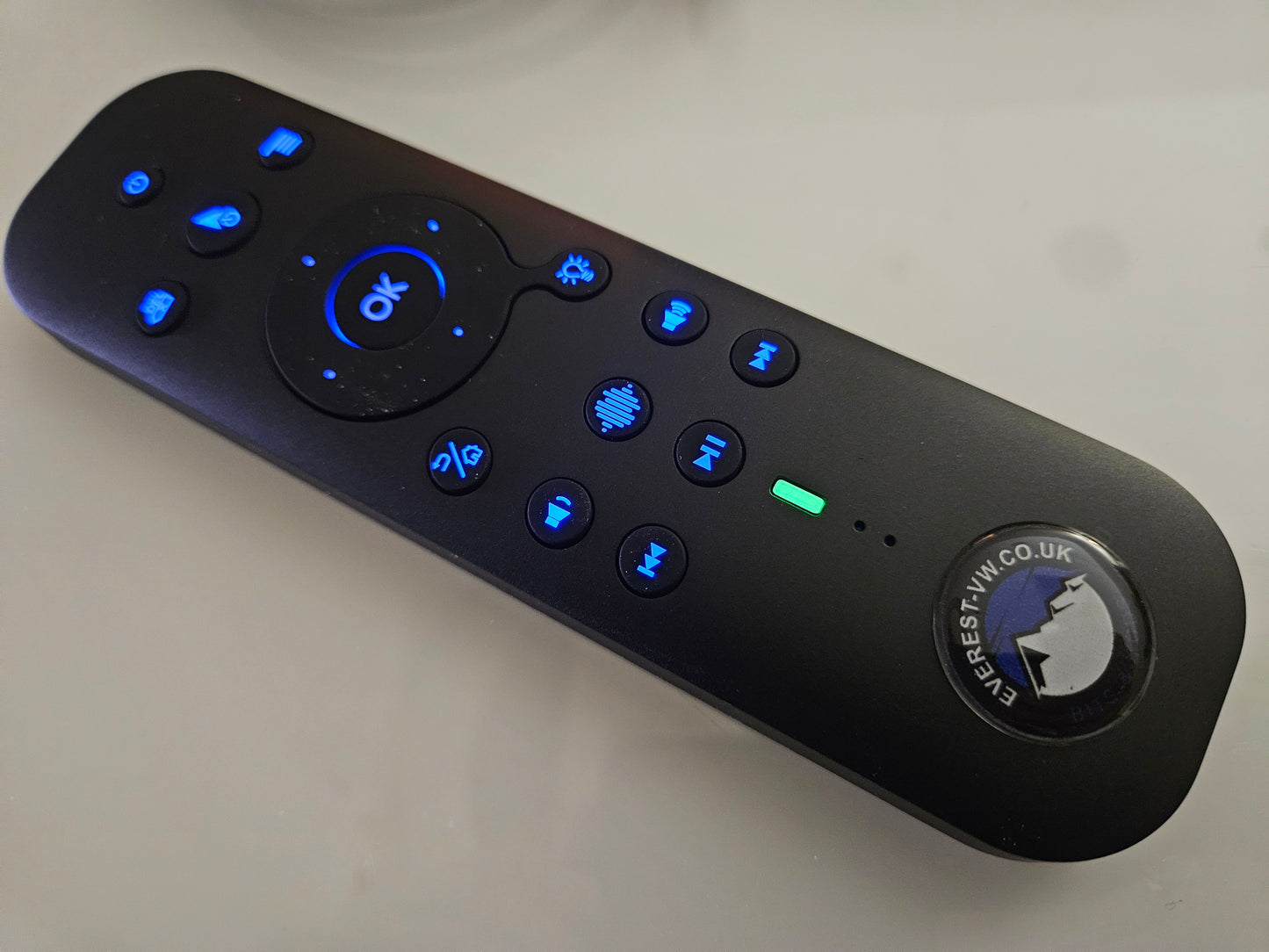
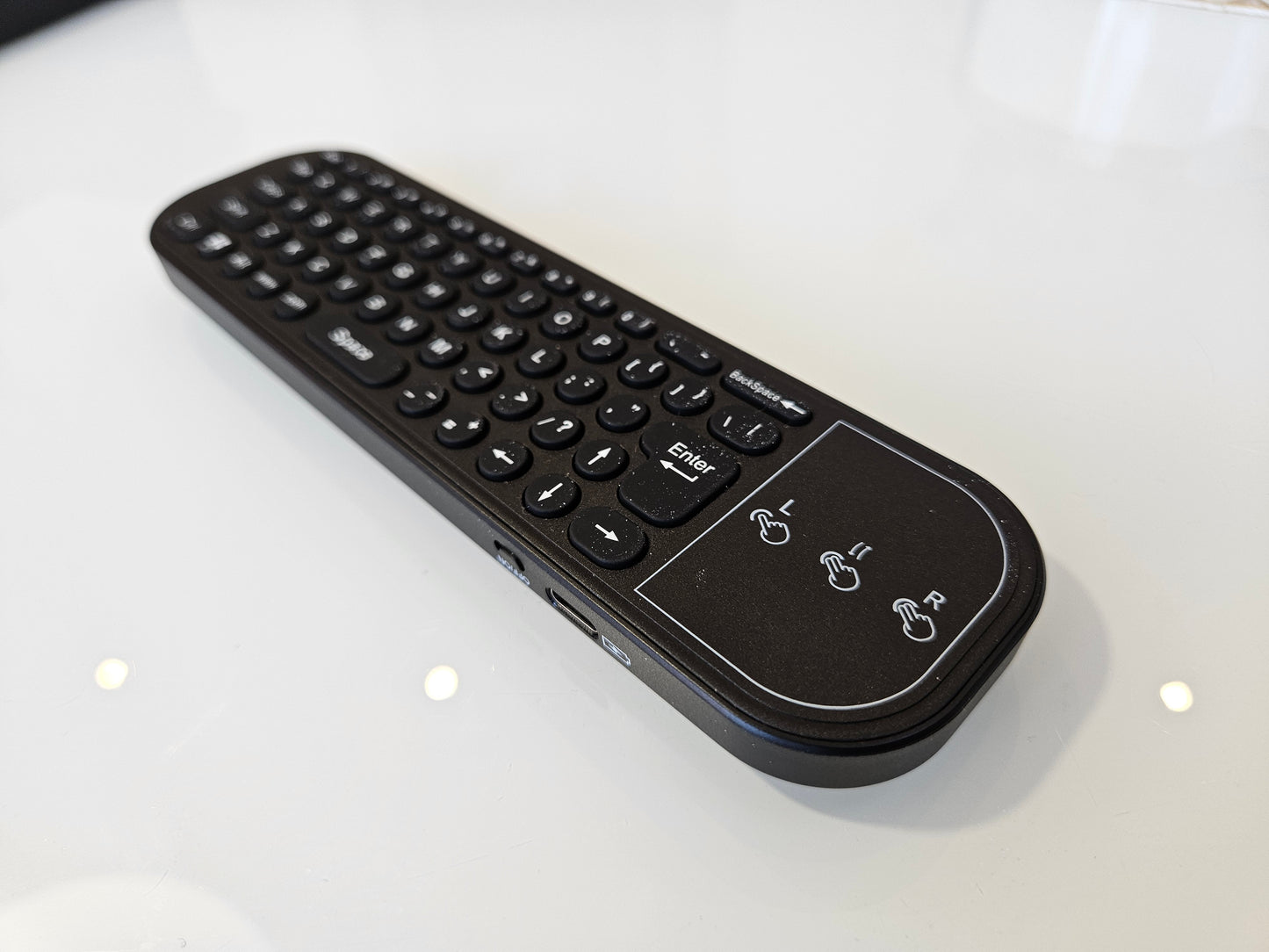
A digital dash unit, trim tools and Torx drivers, a wiring harness, some zip ties, Everest-VW guides to fitting video links, Everest-VW guides to settings and configuration links, and support contact details. Opt for our remote control option and that will be in there too - here is our Handy remote control fitting video, if you don't fit the receiver, its not going to receive a signal!
When will I receive the unit?
All dispatches are accompanied by tracking information shared via email shortly after placing the order, and delivery times may vary from product to product. We aim for next-day delivery for all products wherever possible. Still, where popular products are out of stock at Everest-VW HQ and we are backfilling them - rest assured stock is always on its way or we will dispatch directly from the factory to avoid any restocking delay. Please remember we are a small family run business and sometimes a rush clears the stock faster than we can replenish! If you want quality support and assurance, it's worth waiting for, we cannot keep up with the amount of requests from people that purchased from elsewhere.
I followed your installation guides, and I am stuck!
Panic not - get in touch via site chat or WhatsApp Business Support @ 07841 025 908, and we will be straight over to support you with chat, video, voice messages, pictures - whatever works for you. This is a complimentary service when you buy from Everest-VW, but please be patient and use chat and phone and we will get to you!
You could always book a fitting with us in Northamptonshire near Kettering to be totally assured; where we can visit you for a remote visit and fit (supplementary mileage charges apply).
Q. Is there something wrong with my unit?
Let's talk; sometimes things go wrong - but that's what we are here for; 9 times out of 10, we know what's up and can help sort it out quickly. If it's hardware, we can swap parts out and sort manufacturer warranty later on your behalf. If it's software, we receive regular customised firmware for our customers, and deal with new firmware quirks all the time, sometimes it's just a matter of catching the right settings.
Buying from EVEREST-VW, you have the peace of mind that our 2-year guarantee accompanies all our units; our relationship as a development partner with the manufacturers of our products means we get answers quickly!
Q. I want to update my firmware, I feel like I'm missing out!?
If you purchase from EVEREST-VW, You shall receive exclusive access to our Google drive which includes lots of additional firmware options to bring your digi dash, AI connected kit, or other products such as the Dudu7 right up to date and get it working just the way you want it. We're always working on new tutorials, videos, and guides to make sure you're getting the most out of your hardware.
Occasionally it's important to understand why you are looking to upgrade your firmware is it because there's something wrong and you're hoping there's going to be a fix for it, or you just fancy a new look like the Golf 8 theme that's been included with the latest firmware?
If you are totally happy and everything is working perfectly of course it's fine to just stick with what you've got.
Q. I have a V1 DigiDash I know this because when I go across to my Nav menu and press down I can see a blue screen waiting for a mirror from my mobile? Why can't I update my firmware using the Wi-Fi connect method.
This is a common issue whereby earlier devices which do not incorporate the carplay or Android auto options, had a screen mirror option unless we have already replaced the screen mirror board with a HDMI input, Which is something I've done for a few customers looking to mirror across using our AI kit or Dudu7 head unit. The reason these units are typically unable to access the OTA (over the air update) using the Wi-Fi option in the settings menu, is due to the simple fact that the server address that's held inside that unit is out of date, manufacturer now has new servers and you will need our latest firmware within the Google drive to be installed using a USB stick via the upgrade USB port which is hopefully still accessible if you followed our installation guide.
Once you have put the latest V1 firmware onto your DigiDash you will be able to follow this guide on YouTube to complete the rest.
Q. My unit has started doing a 'bong' as I exceed a specific speed! Speed Alert??
FOR T5.1 AND T6:
There is a whole video on the subject with a great solution! RIGHT HERE!!
Background:
It's a well-known fact that the OEM MFD you had before has an EU-imposed feature for setting speed warning sounds that can be set. Many customers have never used this feature and wouldn't know it existed since your OEM board transferred to the DIGIDASH installed unit; it has to be fully connected to the vehicle harness and communicate with the BCM (Body Control Module) to mobilise the vehicle and validate mileage and dash changes. So, you have a multi-function steering wheel control and press several hundred buttons to navigate every colour combo and unit set at the start of your Digidash journey. What might get activated behind the scenes? You guessed it. OK, OK, What can I do to make it stop? Tell me I don't need my old menu back!! Nope - you could take a 10mm socket or spanner and temporarily disconnect the +ive terminal on the starter battery for 10 seconds - longer for some vehicles (if it didn't reset, the time on the new dash got for 15 mins), then reconnect; that MFD you can't see now has the speed values reset to zero! but watch the video and try the sequence below for the solid fix, the video should explain better than I can write it out - I've activated it once in the last 6 months. I also got through some firmware and settings.
Solution: Note *this sequence is based on a T6 Highline clock set; but should work for many models.
IMPORTANT: This is a big one.. make sure your engine is running all doors are closed and you have pressed ok at least once just to clear any persistent notifications that might have been in your menu.
Start one menu to the right of the 'SETTINGS' menu, and take any other changes you make to the virtual dash on the chin; you can't avoid them; blinkers on!
_______________________________
1. To remove the speed alert from the MFD menu altogether and set it to max speed in case you a: accidentally enable it again in the menu, b: then manage to :
**REPEAT THIS SEQUENCE BELOW 5 TIMES!! COUNT ON YOUR HAND (If you have all your digits) or HANDS to be fully inclusive.
'DOWN' X2 TIMES
'OK'
'DOWN' X8 TIMES
'OK'
'RIGHT'
_______________________________
If you still have a speed alert.. or know you had two anyway.. or just like to be thorough, do this one too.. I would since you are here!
_______________________________
2. To remove winter tyre alert from 'MFD' menu alltogether and set max to 160mph/255kmh:
*REPEAT THIS SEQUENCE BELOW 5 TIMES:
'DOWN' X5 TIMES
'OK'
'DOWN'
HOLD 'OK' FOR 5 SECONDS
'UP'
'OK'
'RIGHT'
_______________________________
ENJOY!
FOR T6.1 AND CRAFTERS:
Your settings are slightly different, your OEM head unit/Radio actually holds the setting to ensure that this cant be set using your steering wheel controls full stop. Click; SETTINGS>VEHICLE then look for Instruments or similar and ensure that Speed alert is unchecked as an option. Do the same with anything to do with winter tyre alerts. Unchecking these options means they would not have appeared in the original analogue dash MFD menu and therefore cannot be accidentally accessed in the background.
If you already replaced your stereo unit, it may be worth briefly plugging in to retrospectively access this menu or utilising any options in the new stereo unit as many still have those menus emulated and accessible using button presses such as OK 5 times etc. But that will be specific to each retrofit stereo unit and or CANBUS retention kit in use.
Q. I have fitted the unit and run the firmware, but can't see the 'UNITS' menu.
It's perfectly normal to see this, you need to lock and exit the vehicle and wait around 15 minutes after a firmware update. Our YouTube channel has full tutorial videos covering these issues within the setup and configuration and firmware updating - www.youtube.com/@everest-vw
Q. My Vehicle is immobilised when I plug in the DIGIDASH??!!
One word - Plugs.. they arent in right, or you damaged or cut the harness (probably didn't do that!) So you were excited and you put the plugs in too quickly - check out this handy video explaining what you might have done there!